
Many chemists know their current software is slow, outdated or poorly supported, and still do not change it. The reason is almost always fear: losing years of data, shutting the counter for days, or confusing the staff. These fears are real, but all three can be handled with a plan.
This guide shows you how to change pharmacy software step by step: what data to move, how to prepare it, how to check it, and how to go live without stopping billing.
Why shops switch
- The old software runs on one computer with no cloud access and no automatic backup.
- It is slow, or it crashes during rush hours.
- It does not handle batch expiry, the Schedule H1 register or current GST needs well.
- Support does not answer, or updates are paid separately.
- The shop is growing and needs multiple counters or branches.
What data should you move?
- Item list (name, company, form, GST %, barcode) | Why it matters: Saves you from re-entering every product. Move it? Yes.
- Batch-wise stock (batch no., expiry, MRP, quantity, purchase rate) | Why it matters: Keeps expiry tracking and FEFO working from day one. Move it? Yes.
- Customers with outstanding udhaar | Why it matters: So nobody's balance is lost. Move it? Yes, as opening balance.
- Suppliers with what you owe them | Why it matters: So purchase payments start correctly. Move it? Yes, as opening balance.
- Old bills and payment history | Why it matters: Needed for records, not for daily work. Move it? Usually keep as reports.
Most shops bring over items, batch stock and balances, and keep old bills as exported reports instead of moving every old invoice. That keeps the new system clean and the migration quick.
Before you start
- Ask your current vendor how to export your data. You can usually export items, stock and party lists to Excel or CSV. If they refuse, find out before you commit to anything else.
- Take a full backup of the old software's data folder or database, and keep a copy on a pen drive or in cloud storage.
- Pick a cut-off date. The first of a month, or a quiet day, is ideal. All balances and stock will be taken as on that date.
- Try the new software on a free trial first, with a small part of your real data.
Step-by-step migration plan
- Test with 10 items. Import a few real medicines with batches into the trial and make a bill. This shows you the format the new software expects.
- Export from the old software: the item list with batch, expiry, MRP and quantity; customer balances as on the cut-off date; supplier balances.
- Clean the data in Excel. Remove duplicate names, fix spellings, fill missing expiry dates, convert quantities to packs (strips) and check GST rates. Take expired stock out of the saleable list.
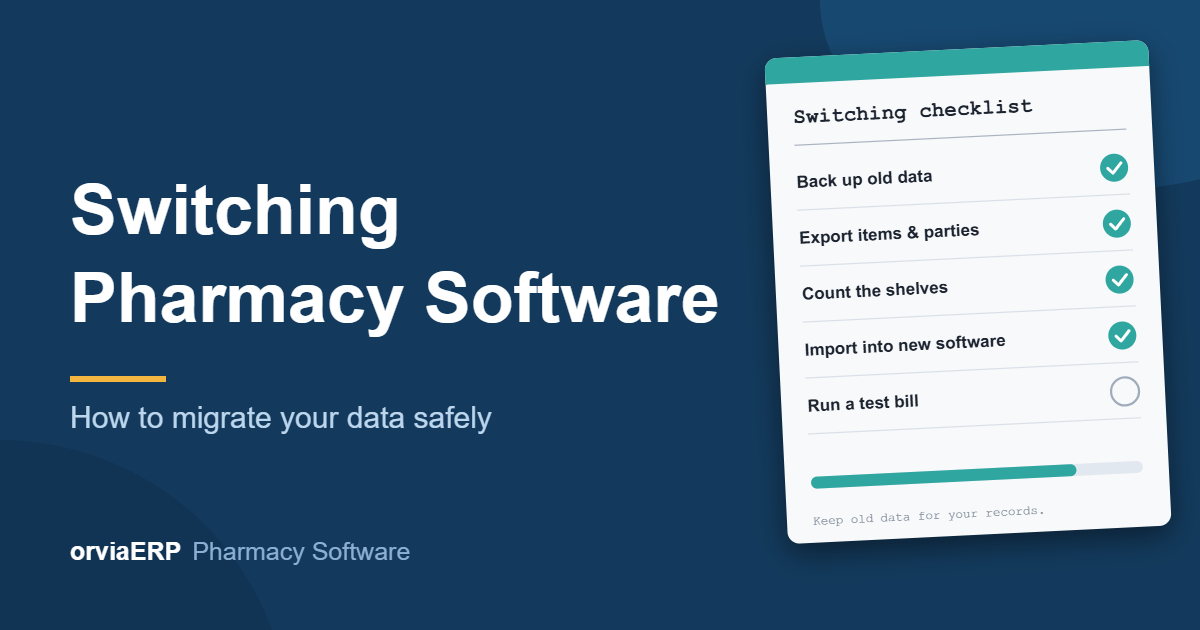
- Count the shelves. Do a physical count on or just before the cut-off date. The real count, not the old system, should become your opening stock.
- Import items and batch stock, then customers with their opening balances, then suppliers with theirs. Read the preview and fix errors before you confirm.
- Check the result. Compare 20 random items with the shelf, your five biggest customers' balances, and your main suppliers' balances. The total stock value should be close to your old figure.
- Run test bills: cash, UPI, credit, a Schedule H1 sale, a return and a printout on your real printer.
- Train the staff in one or two short sessions, and keep a one-page cheat sheet at the counter.
- Go live at the start of the day. Keep the old software available, read-only, for at least a month to look up old bills.
- Review after one week. Fix repeated mistakes and adjust the settings.
Common migration problems and fixes
- Batch numbers are missing | Likely cause: The old software tracked only items, not batches. Fix: Create one batch per item using the expiry from your shelf count.
- Expiry dates look different | Likely cause: Mixed formats such as 08/27, Aug-27 and 31/08/2027. Fix: Make the format uniform before import, or use one the new software accepts.
- Duplicate items | Likely cause: Same medicine saved with different spellings. Fix: Merge duplicates in Excel before importing.
- Quantity is in tablets, not strips | Likely cause: Different unit of measure. Fix: Convert to packs (strips) before import.
- Customer balances do not match | Likely cause: Balances taken on different dates. Fix: Take every balance as on the same cut-off date.
- Negative stock in the old data | Likely cause: Bills made before purchase entries. Fix: Use the physical count as the true opening stock.
Do not lose your records
Before you stop using the old software, export your reports for the period and keep them safe: sales and purchase registers, GST reports, and the Schedule H and H1 records. How long to keep each record depends on the law and your licence conditions, so ask your CA and check the rules for your state. Never cancel the old software or delete its data until you have confirmed that you have what you need.
How long does it take?
It depends mainly on how clean your data is. A small store with an organised item list can often prepare in a day or two and go live soon after. Shops with duplicate items and missing batches spend most of the time cleaning data, not importing it. The shelf count is the part that cannot be skipped, and it is also the best accuracy check you will get.
How Orvia helps
Orvia has an Import data screen that reads your Excel or CSV file. It matches columns by name (Item Name, Company, Batch No., Exp. Date, M.R.P., Qty, Purchase Rate, GST %, Barcode and more) and lets you correct any guess. You see a preview of what each row will become, with errors and warnings, and nothing is saved until you confirm. Opening stock goes into the outlet you choose, customers can come in with their opening udhaar balance, and suppliers with the amount you owe them. Existing records are not overwritten. After import, use the stock count feature to check the shelf against the system. Old bills are not imported, so export them from your old software for your records. The free trial lets you test the whole process with your own data first.
Final thoughts
Changing software feels risky because stock and money are involved, but a clear plan makes it safe: back up, clean, count, import, check and then go live. Start with a trial and a few real medicines this week, and you will know exactly how smooth your own migration will be.
Thinking of switching? Visit the Orvia pharmacy software page or start your free trial at pharmacy.orviaerp.com and test the import with your own data. Questions? WhatsApp us on +91 7007761116.